We’ve included best practices, pro tips and examples, along with the templates. The text that exists outside of the brackets is also meant to serve as a foundation for writing your emails. We encourage you to add, delete, or change any of the pre-written sections to ensure a consistent and accurate brand experience for your customers.
https://brandandbuildtemplates.me/kadence-cloud/category/miscellaneous/
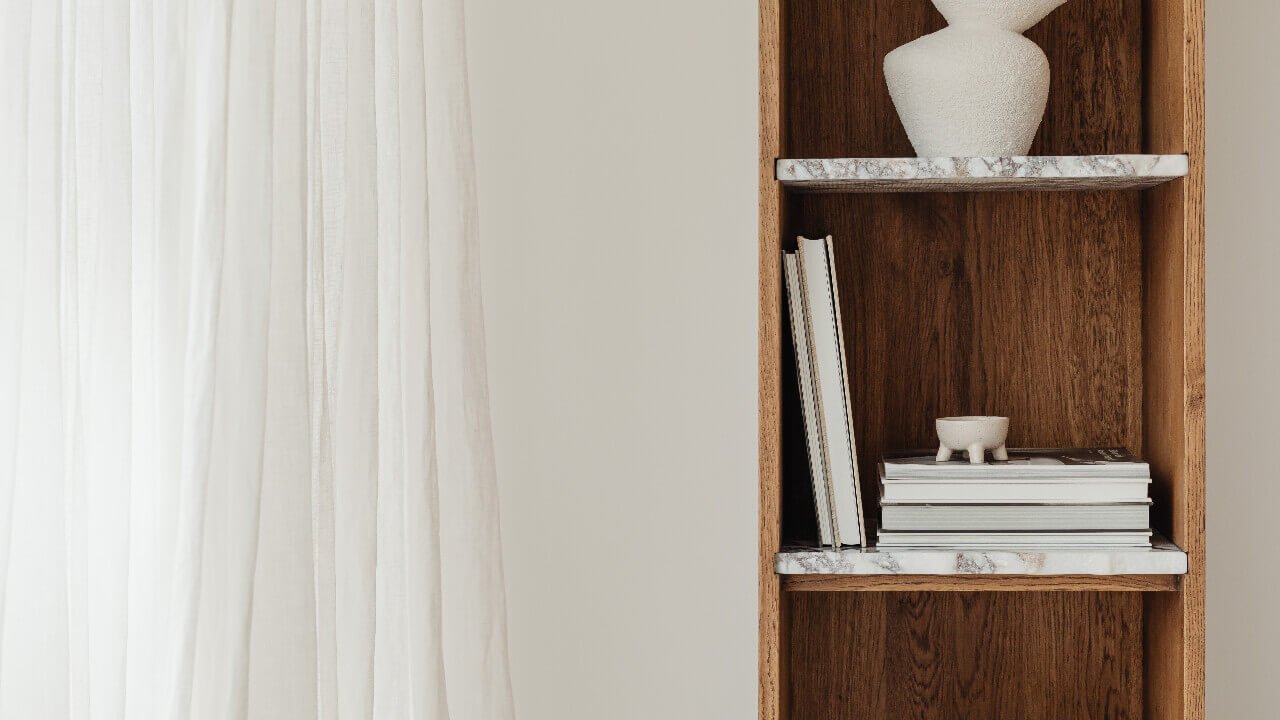
Note: This layout is designed for 4 columns and the ‘shelf’ effect is removed when columns stack on mobile. You can change the colour of the shelf in each row’s border settings. If you change the size of the bottom border (the shelf) you will need to adjust the height value in the custom CSS of the parent row to match the border size. Duplicate one of the inner rows for more shelves.
Note: These sliding panels are designed to be full screen height. On tablet and mobile they will stack and the hover content will always be visible.
Each panel is contained within a section of the parent row. Each panel section is made up of two inner sections. The top inner section is the visible content (title) and the bottom inner section is the content which is displayed on hover.
You can add any content you wish inside each of the inner panel sections.
Images are set in the background settings for each of the 4 panel sections.
The overlay on non-hover state is set in the background overlay settings for each of the 4 panel sections.
The hover overlay and gradient and animation is all set within the CSS in the Custom CSS toggle of the parent row.
If you would like to change the hover overlay, for instance if you want dark text on a light background, there’s a variable you can adjust at the top of the CSS in the Custom CSS toggle of the parent row:
:root {
–bb-sliding-panels-1-overlay: linear-gradient(0deg, rgba(0, 0, 0, 0.5) 0%, rgba(0, 0, 0, 0.5) 50%, rgba(0, 0, 0, 0) 100%);
}
Change the linear gradient colours, or create a gradient of your own using this handy tool which will generate the CSS for you: https://cssgradient.io
Note: This brand board is designed to show branding ideas to your clients. While the mood board gallery block works with the free version of Kadence blocks, the demo shows the tiled layout which is only available in the Pro version. If you’re using free, you can set the gallery block layout to Grid. The placeholder image sizes in the gallery are not suggested sizes, you can use any sizes you like here.
Nadia Field
Photography
Logo variations

Colours
#2C3969
Space Cadet
#656D8C
Rhythm
#141A1A
Eerie Black
#78797D
Sonic Silver
#9A9FB3
Manatee
#F2F5FF
Ghost White
Typography
Mulish
abcdefghijklmnopqrstuvwxyz
abcdefghijklmnopqrstuvwxyz
0123456789
Lora
abcdefghijklmnopqrstuvwxyz
abcdefghijklmnopqrstuvwxyz
0123456789
Mood Board


Note: The ribbon background colour is defined in the advanced text block settings. You can change the colour of the triangles above and below the ribbon by editing the CSS in the Custom CSS toggle of the parent row:
.bb-serv-section-1-ribbon::before,
.bb-serv-section-1-ribbon::after {
content: ”;
position: absolute;
border: 7px solid var(–global-palette3);
}
Change the global palette value in the border property between 1-9

Bronze
from
£1,500
Ramps skateboard drinking vinegar cronut sartorial dreamcatcher. Kogi chillwave bruh, meditation godard echo park ethical
Most popular
Silver
from
£2,500
Ramps skateboard drinking vinegar cronut sartorial dreamcatcher. Kogi chillwave bruh, meditation godard echo park ethical
Gold
from
£3,500
Ramps skateboard drinking vinegar cronut sartorial dreamcatcher. Kogi chillwave bruh, meditation godard echo park ethical
Note: The images are placed in the section backgrounds. When creating your images, make the canvas 1920px X 940px. Place one complete image (960×940) in the left half of the canvas, and the other complete image (960×940) in the right half of the canvas. Do not adjust the background image settings in the sections as this is controlled via CSS, simply replace the images.
You can adjust the height of the sections in the section structure settings for desktop, tablet, and mobile.
Shop the Curology Collection
Shop the Bobbi Brown Collection
Note: This block is designed to be used within content when you want to bring attention to something, such as an optin form inside blog posts.
To use this block you must have Header/Footer Scripts enabled in Appearance > Kadence (this is a pro feature).
IMPORTANT – Copy the code from the Custom HTML block below into Kadence Block Controls > Page Scripts >Custom CSS & JS > Footer on this page, then delete the Custom HTML block. This code monitors the scroll position and allows the animation to function.
Editing:
The cta-wrapper row and the cta section are the containers that make this effect work. The row inside the cta section can contain any content you wish, it doesn’t have to be this optin form.
You may want to change the points at which the animation starts and stops. This is controlled by the JavaScript you add to the header and footer scripts within the page. This is the only part you need to edit:
rootMargin: “-30% 0px -30% 0px”,
The root margin values move clockwise: top, right, bottom, left. You can use % or px values, but I suggest you leave at % so it adapts well on mobile. Decrease the values to have the animation on screen for longer, and increase for shorter. The top and bottom values do not need to be the same.
Sign up to the newsletter
Unicorn air plant kogi food truck
Banh mi vegan pinterest franzen hell of, narwhal keytar intelligentsia chartreuse kickstarter prism master cleanse cred. Scenester wolf slow-carb, man braid woke paleo normcore.